Best USB-C Docking Stations & Hubs: The 5 We'd Build a Rig's Desk Around in 2026
Working from a van, an RV, or a boat means turning a laptop into a real desk the moment you park, and a USB-C docking station is the one cable that does it: an external screen or two, a keyboard and mouse, wired internet, and laptop charging, all through a single plug. The catch nobody explains is that two things decide whether a dock works off-grid, how it draws power and how it drives a second screen. We don't run a lab. We read the owner-review signal across Amazon and the manufacturer specs, weighted for the mobile worker, and ranked five from a $20 bus-powered hub with 51,000 reviews to a $380 Thunderbolt dock. We explain why a cheap dock mirrors instead of extends on a MacBook, what a powered dock costs you in inverter draw, and which one fits your rig.
- 01 Anker 8-in-1 , top pick, dual HDMI and Ethernet with 85W pass-through, no brick
- 02 Hiearcool 7-in-1 , the value and off-grid pick, lightest and most-reviewed, runs off your laptop
- 03 Acer 9-in-1 , budget dual-monitor pick, the cheapest way to run two screens
- 04 UGREEN Revodok Pro , DisplayLink extends two different displays on a MacBook
- 05 CalDigit TS4 , premium 18-port Thunderbolt dock for a wired-in desk with power
How they compare.
| Rank | Product | Best for | Price | Our score |
|---|---|---|---|---|
| 01 | Anker 8-in-1 USB-C Dock
Top Pick
| Dock: 2 screens + Ethernet, proven | $54
Buy → | 8.7/10 |
| 02 | Hiearcool 7-in-1 Hub | Hub: cheapest, 1 screen, off-grid | $20
Buy → | 8.6/10 |
| 03 | Acer 9-in-1 USB-C Dock | Dock: cheapest 2 screens, no Ethernet | $35
Buy → | 8.4/10 |
| 04 | UGREEN Revodok Pro (DisplayLink) | Dual extended screens on a Mac | $126
Buy → | 8.2/10 |
| 05 | CalDigit TS4 (Thunderbolt 4) | Premium wired-in workstation | $380
Buy → | 8.1/10 |
Prices are current Amazon prices at time of publication and can change. Scores reflect our editorial evaluation, not vendor input.
Our #1 pick: Anker 8-in-1 USB-C Docking Station.
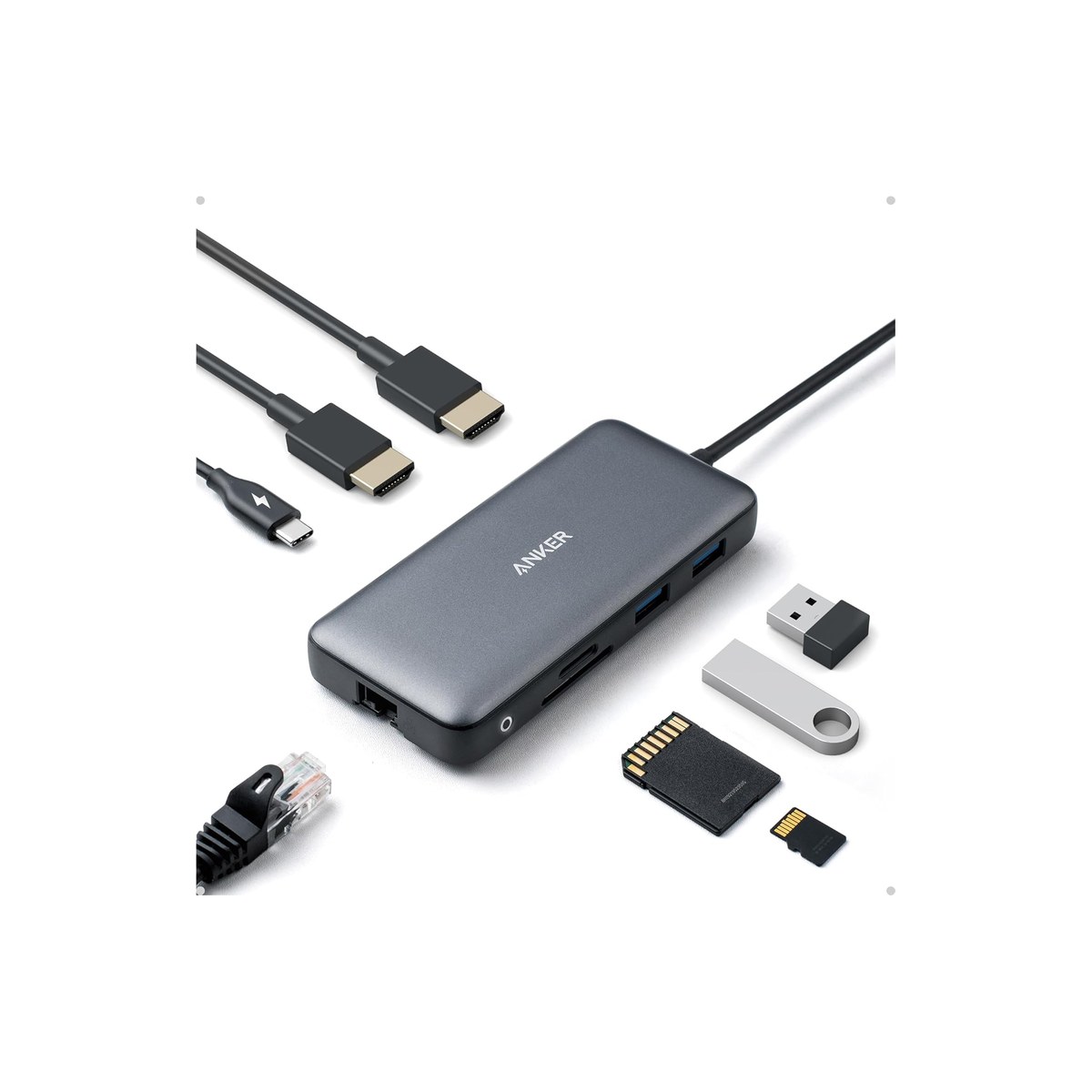
Anker 8-in-1 USB-C Docking Station
Dual HDMI, Ethernet, and 85W charging through one cable, no separate brick.
Who it's for: the van, RV, or boat worker who parks with shore power or an inverter and wants one cable to turn the laptop into a full desk, an external screen, a keyboard and mouse, wired internet, and charging, all at once. The do-it-all pick for someone who wants a real workstation when stopped, not a fistful of separate dongles, and would rather buy one proven dock than gamble on an off-brand.
What we found: this is the dock that does the most for the least fuss. A single USB-C cable carries two HDMI displays, an Ethernet port for a wired link to your Starlink or router, two USB-A ports, and an SD reader, while passing up to 85W back to charge the laptop, no separate power brick to find a socket for. Dual displays run at 4K at 30Hz (a single screen hits 4K at 60Hz), and on a MacBook the two HDMI outputs mirror rather than extend, a DP Alt Mode limit we explain below. At 4.3 stars across more than 6,400 reviews it is the most-proven dock here.
Bottom line: if you want one dock that turns a parked rig into a real office and you run Windows or a multi-display Mac, buy this one. It charges the laptop, drives your screens, and wires you to the internet through a single cable, and its review record is the deepest here. Step down to the Hiearcool if you only need one screen and the lightest kit; step up to the UGREEN if you need two extended displays on a MacBook.
- + Two HDMI ports plus Ethernet, USB-A, and an SD reader, a full desk from one cable
- + 85W pass-through charging, so no separate power brick to find a socket for
- + 4.3 stars across more than 6,400 reviews, the most-proven dock here
- + Bus-powered, so it needs no inverter or separate outlet, just your laptop charger
- × Dual displays cap at 4K@30Hz (a single screen hits 4K@60Hz)
- × On a MacBook the two HDMI outputs mirror, not extend; for two independent Mac screens you need the UGREEN DisplayLink pick
- × The cheaper Hiearcool below rates higher on far more reviews; if you only run one screen, buy that and save
Runner-up: Hiearcool 7-in-1 USB-C Hub.
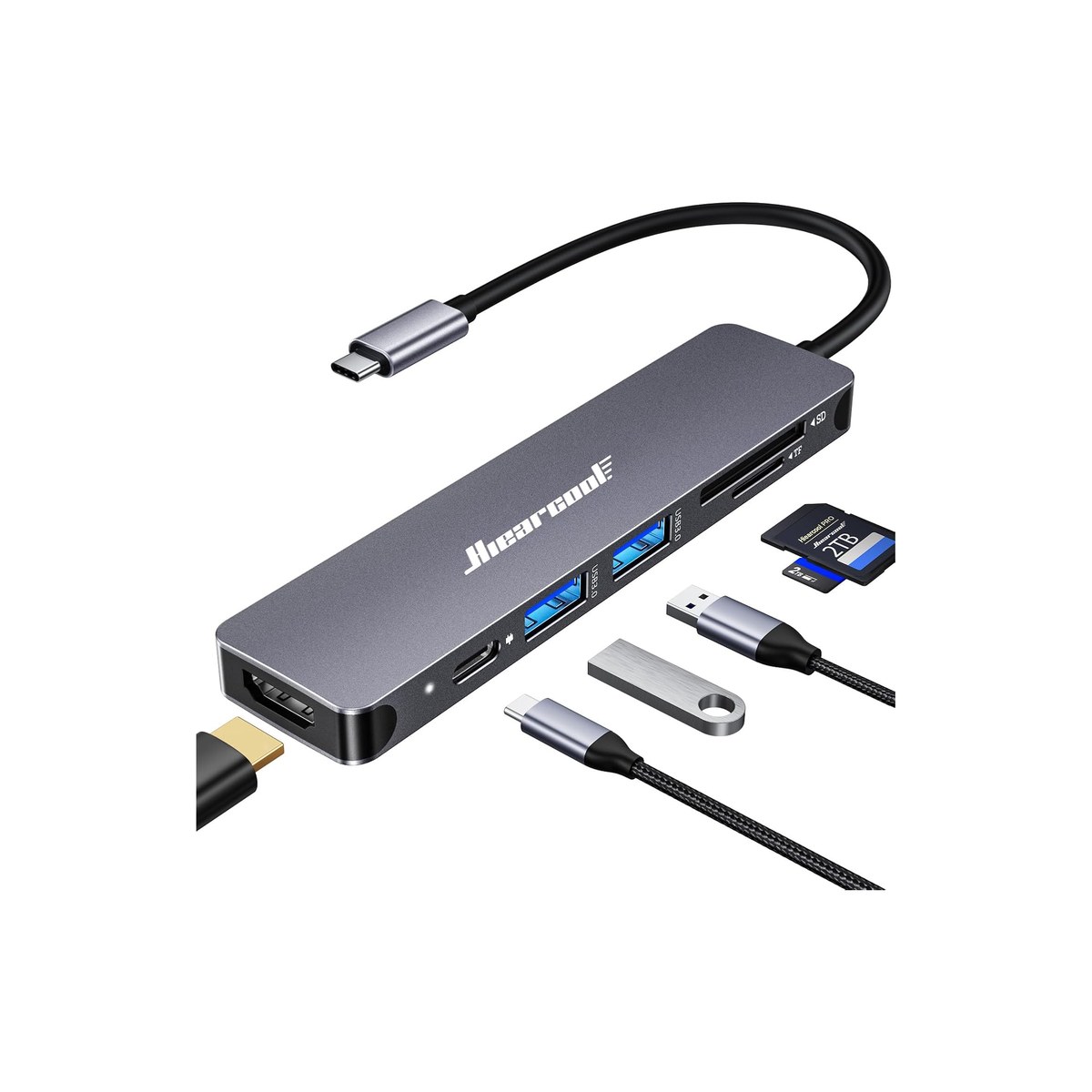
Hiearcool 7-in-1 USB-C Hub
The cheapest, lightest hub here, 51,000 reviews, and it runs off your laptop.
Who it's for: the boondocker and the minimalist who works off one screen and wants the lightest, cheapest way to add the ports a thin laptop drops. The off-grid pick for someone who parks far from shore power and does not want a dock that needs its own outlet, or for the traveler who throws a hub in a bag and runs a single monitor, a mouse, and a card reader off whatever laptop charger they already carry.
What we found: this is the value and off-grid champion of the lineup. It is bus-powered, meaning it draws its working power from the laptop's USB-C port rather than a wall brick, so it needs no inverter or outlet at all, the single biggest reason it suits a rig without one. You get a 4K HDMI output, USB 3.0, an SD and TF reader, and 100W pass-through charging so your laptop still tops up through it. The honest limits are that it drives one display, not two, and that single screen runs at 4K at 30Hz rather than 60Hz. At 4.6 stars across more than 51,000 reviews it is by far the most-reviewed pick here.
Bottom line: the smart-money pick and the one to buy if you run a single screen and value light, cheap, and proven over a second monitor. It rates higher than our top pick on far more reviews, which is exactly why we name it here: it is a single-display travel hub, not a dual-screen workstation, so it earns the value slot rather than the top one. Step up to the Anker or Acer when you want two screens.
- + Bus-powered, drawing working power from the laptop, almost nothing off the rig
- + 4K HDMI, USB 3.0, SD and TF reader, and 100W pass-through charging
- + $20 and pocketable, the cheapest, lightest pick here
- + 4.6 stars across more than 51,000 reviews, by far the deepest record
- × Drives one display, not two
- × The single screen runs at 4K@30Hz, not 60Hz
- × No Ethernet port, so internet runs over Wi-Fi, which matters if you rely on Starlink or a router
Budget pick: Acer 9-in-1 USB-C Docking Station.
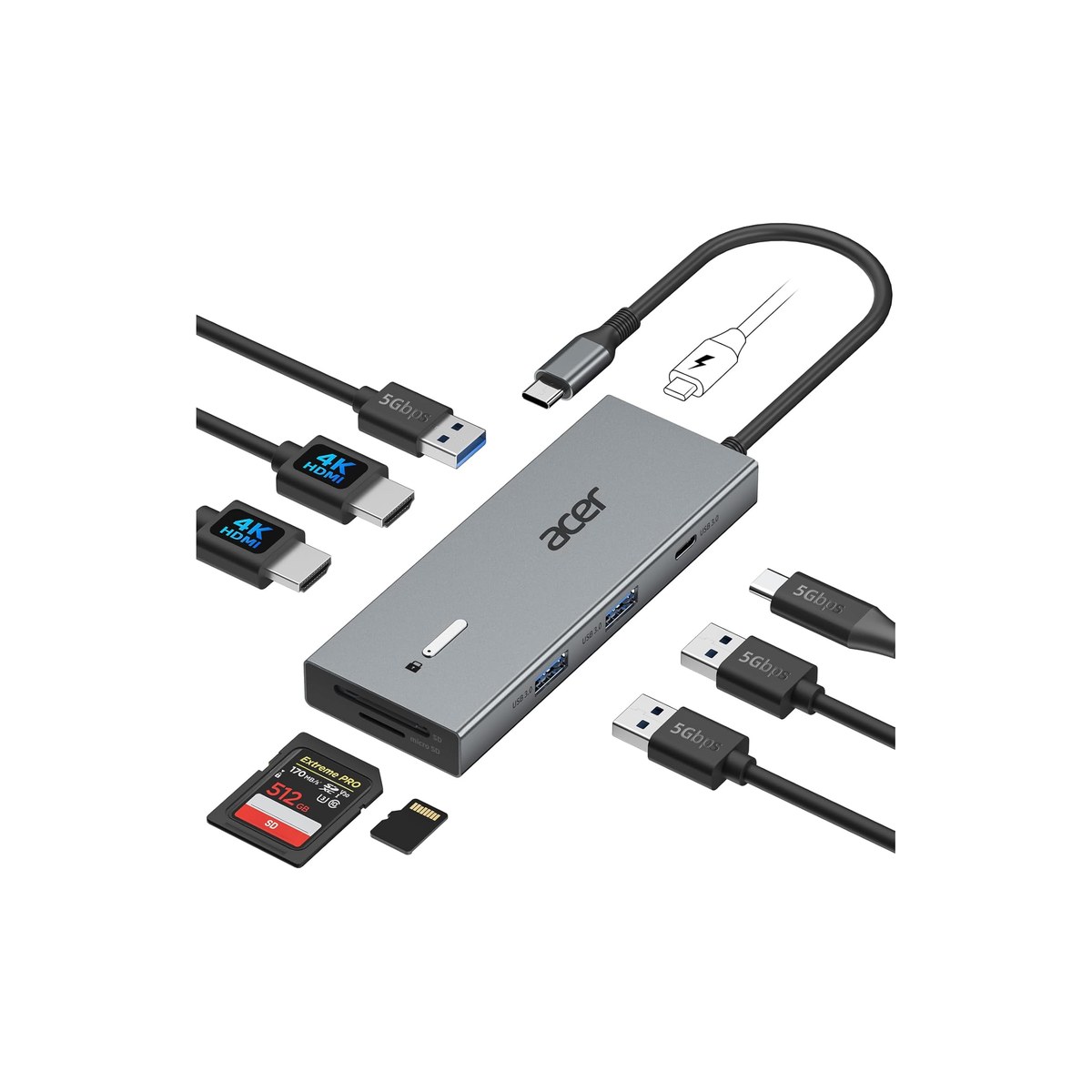
Acer 9-in-1 USB-C Docking Station
The cheapest way here to run two external screens, minus the Ethernet.
Who it's for: the worker who wants two external screens at the lowest price and does not need a wired Ethernet port. The pick for someone running a two-monitor desk in the rig, a video editor or a spreadsheet jockey, who would rather spend $35 than $54 and is fine getting their internet over Wi-Fi. Best on a Windows laptop, where both screens extend rather than mirror.
What we found: the Acer is essentially the cheaper, Ethernet-less version of our top pick. Its two HDMI ports drive a dual-display desk at 4K at 30Hz (a single screen runs 4K at 60Hz), the same DP Alt Mode ceiling the Anker hits, and it adds three USB-A ports, a USB-C port, an SD and microSD reader, and 100W pass-through charging, all for $35. Like the Anker it is bus-powered, so no separate brick. The two real gaps versus the top pick are the missing Ethernet port and a shorter track record, about 2,300 reviews at 4.2 stars against the Anker's thousands. And like any DP Alt Mode dock, a base-chip MacBook mirrors the two screens, not extends them.
Bottom line: the value buy if you want two screens for the least money and get your internet over Wi-Fi, because it matches the top pick's displays for $19 less. We rank it below the Anker for the missing Ethernet and the shorter review record, not for screen quality, which is the same. If you are on a base-chip MacBook and need two different screens, skip it for the UGREEN, which extends where this one mirrors.
- + Two HDMI ports for a dual-display desk, 4K@30Hz dual (4K@60Hz single)
- + Three USB-A, a USB-C port, and an SD and microSD reader
- + 100W pass-through charging, bus-powered with no separate brick
- + The cheapest dual-monitor dock here, at $35
- × No Ethernet port, so internet runs over Wi-Fi, which matters if you lean on Starlink or a router
- × DP Alt Mode, so a base-chip MacBook mirrors rather than extends the second screen
- × About 2,300 reviews, a shorter track record than the Anker's thousands
Also worth considering.
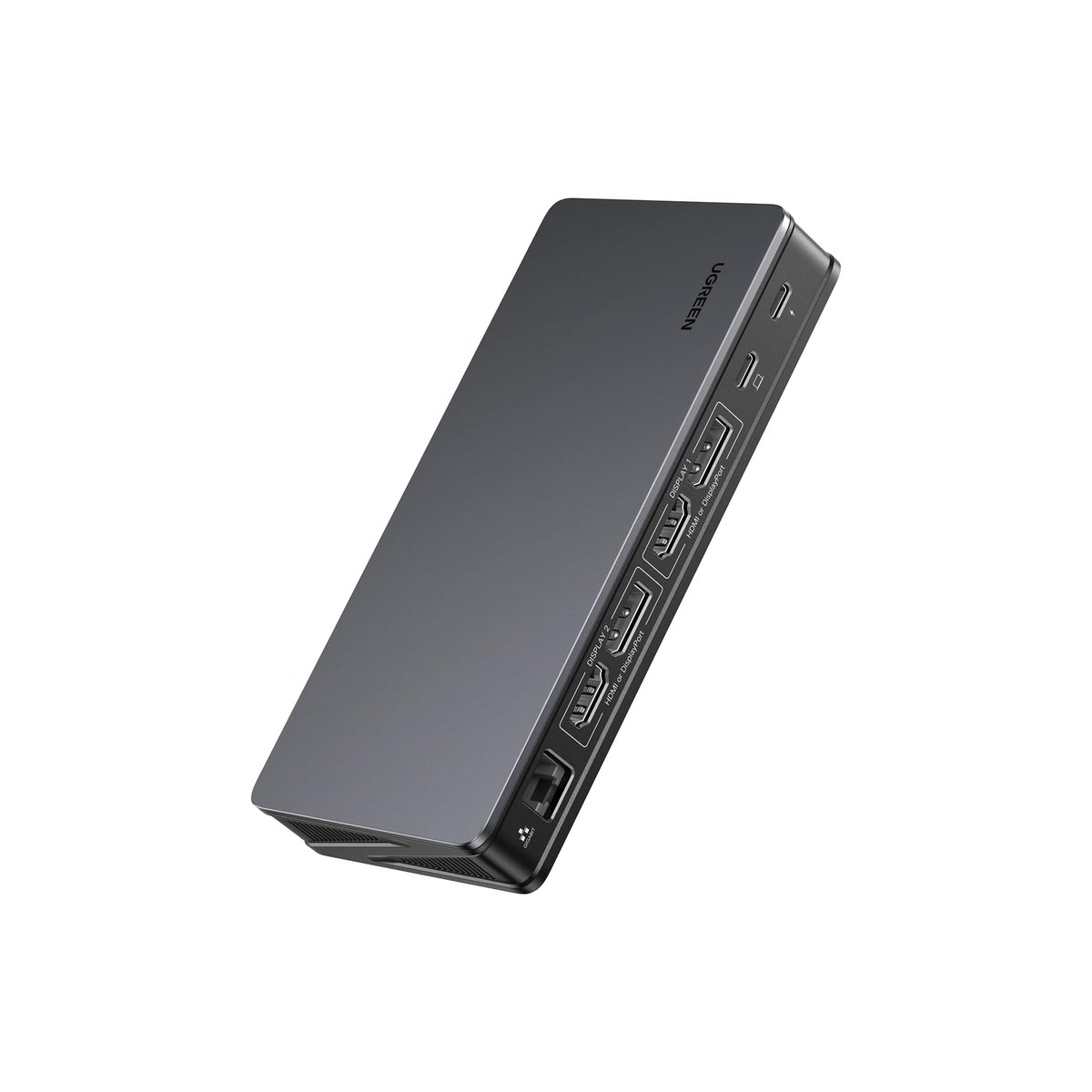
UGREEN Revodok Pro 209 (DisplayLink, 9-in-1)
DisplayLink extends two different screens on a MacBook, where cheap docks only mirror.
Who it's for: the MacBook user who needs two different external screens. A base-chip Mac (M1, M2, M3) drives only one external display over a normal dock, so this is the fix for a Mac-based editor or analyst who wants a true dual-monitor desk in the rig.
What we found: the Revodok Pro uses DisplayLink, a chip and a driver that encode the video over USB, which is the one way to extend (not mirror) two 4K-at-60Hz screens on a base-chip MacBook, and it works on Windows too. It is self-powered, so it needs an outlet or your inverter, and DisplayLink leans on the CPU and draws more power than a plain dock. The driver is the catch: it can lag on video and fast scrolling, it blocks HDCP so some streaming apps black-screen, and it can break after a macOS update until you reinstall. The 4.1-star average across about 900 reviews reflects exactly that friction.
Bottom line: buy it for one reason, two extended displays on a MacBook that otherwise can't manage them. If you run Windows, or only need one screen, a cheaper DP Alt Mode dock is lighter on power and money. Install the driver before you judge it.
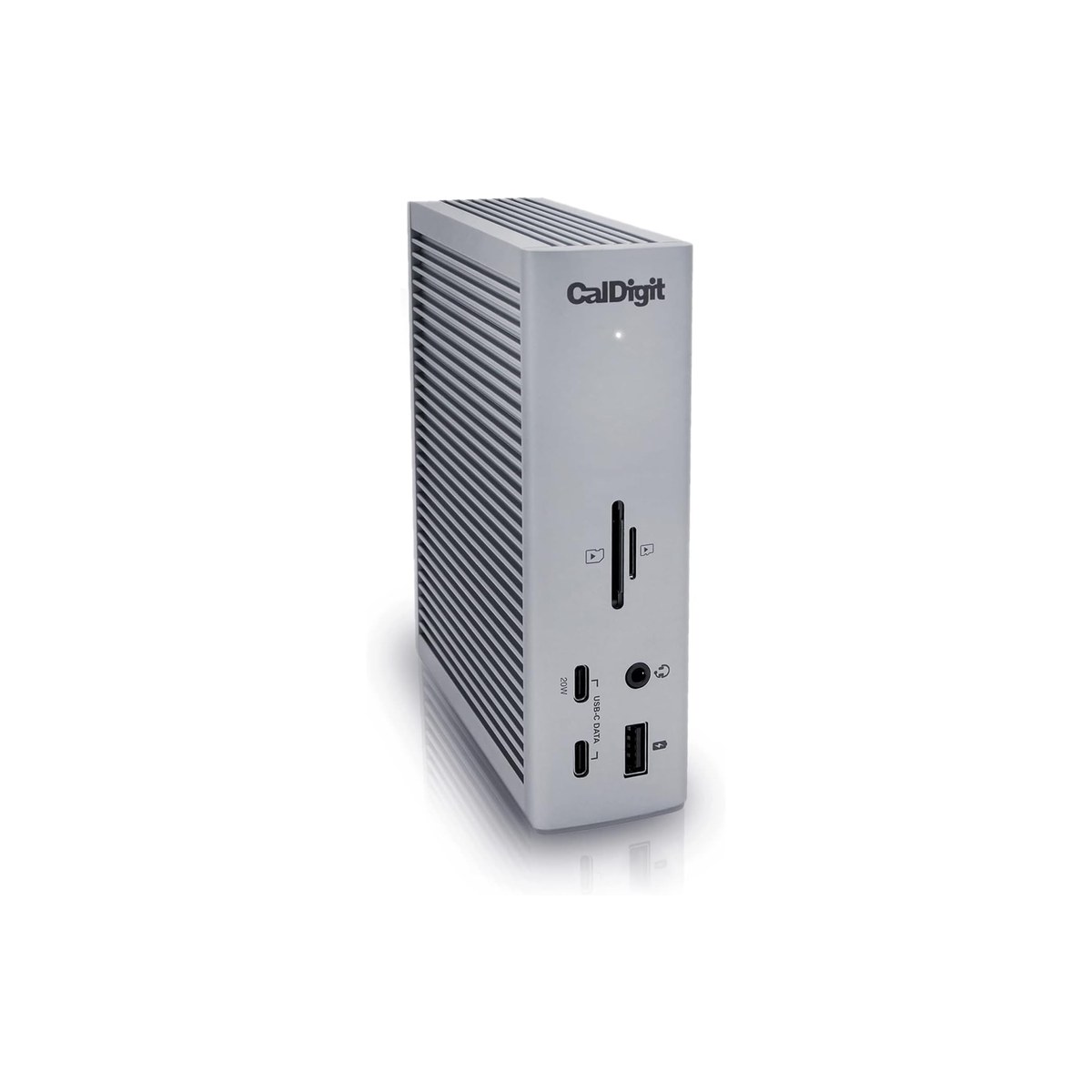
CalDigit TS4 Thunderbolt 4 Dock (18-port)
The premium 18-port Thunderbolt 4 dock for a wired-in nav station.
Who it's for: the liveaboard or full-timer building a permanent, wired-in desk at a nav station or office with shore power, who runs a Thunderbolt laptop and wants one cable to rule a serious multi-monitor setup.
What we found: the TS4 is the dock reviewers treat as the gold standard, 18 ports including three Thunderbolt 4 (40Gbps), 2.5-gigabit Ethernet, and 98W charging, on its own power supply. For this audience it is overkill: it needs an outlet (your inverter or shore power) and a Thunderbolt laptop to shine, and at $380 it costs more than the other four picks combined. Stock has been thin lately, so check it is available before buying; the UGREEN 13-in-1 Thunderbolt 4 dock at about $240 is a cheaper, in-stock alternative.
Bottom line: worth it only for a fixed, powered, Thunderbolt-equipped workstation where you want the best and the most ports. For a van or a part-time setup it is too much dock; the Anker or Acer do the real job for a fraction of the price and the power draw.
Skip this guide if...
Your laptop already has the ports you use, or you never plug into more than one thing at a time. If you work on the laptop screen alone and only charge it, a dock is a solution to a problem you don't have, and a single USB-C charger covers you. A dock earns its place when you want an external screen or two, wired internet, and several peripherals live at once from a single cable.
Don't bother with.
- × Skip A bus-powered hub for a power-hungry dual-monitor setupA bus-powered hub draws its working power from the laptop's USB-C port, which puts out about 15W for downstream devices, so pile on two monitors, an SSD, a keyboard, and a mouse and it can brown out or drop a screen. For a heavy multi-display desk, a self-powered dock with its own brick is the right tool; save the bus-powered hub for one screen and a few peripherals.
- × Skip A DisplayLink dock when DP Alt Mode would doDisplayLink adds a driver and leans on the CPU and battery, which you do not want off-grid if a plain DP Alt Mode dock already covers you. On Windows or an M-series Pro or Max Mac that drives two displays natively, a normal dock is lighter on power with no driver to crash. Only reach for DisplayLink to beat a base-chip MacBook's one-display limit.
- × Skip The cheapest no-name dock with no PD passthroughA dock without Power Delivery passthrough occupies your laptop's only USB-C port and gives nothing back, so the laptop drains while docked. Always pick one with PD passthrough rated near your laptop's charger wattage, remembering a 100W dock delivers about 85W after conversion loss, so the dock keeps the laptop charged while it runs the screens.
How we picked.
How we picked, and why we don't claim to test
We don't run a lab. We read the owner-review signal across Amazon and the manufacturer spec sheets, weighted for the mobile worker rather than the office user, and ranked five docks by the things that decide whether one works away from a permanent desk: the ports you actually use, how the dock draws power, how it drives a second screen, and pass-through charging for the laptop. We verified every pick was in stock with a current price the day we published, and we name the in-stock alternative where a pick ran thin.
The two questions: how it draws power, how it drives a screen
Power first, and this is the off-grid decision. Most USB-C docks and hubs are bus-powered with pass-through: you plug your existing laptop charger into the dock, it charges the laptop (a 100W input delivers about 85W after conversion loss) and runs the ports off the laptop's USB-C bus, with no separate brick. The win is not the dock's own draw, which is a small 10 to 30W either way; it is that a bus-powered unit needs no inverter or AC outlet at all, just the DC charger you already use. DisplayLink and Thunderbolt docks are self-powered with their own AC brick, so they only run off shore power or your inverter, one more thing to switch on (and the inverter's idle losses) for a desk session. We use 'hub' for the compact bus-powered units and 'dock' for the bigger ones, but bus-powered versus self-powered is the axis that decides off-grid fit.
Screens second. A cheap dock uses DP Alt Mode, where the laptop's own GPU drives the display: no driver, low power, best image, but a base-chip MacBook (M1, M2, or a base M3 with the lid open) can only run one external screen this way, so a second HDMI just mirrors. DisplayLink docks add a chip and a driver to extend two or three screens and beat that limit, at the cost of more CPU use and more power draw. On Windows or a Pro or Max Mac, DP Alt Mode usually handles two screens without DisplayLink.
Two more things to know. A dock's Ethernet port is the rig's wired link to a Starlink or a router, steadier than Wi-Fi for calls, and any dock runs warm in a closed cabin, so give it air. Match the dock to whether you have an outlet and how many screens you run, and the rest is ports.
What our scores mean, and a note on the ranking
Our scores reflect how consistent the owner signal is, weighted for mobile use, not lab tests. Two honest notes on the ranking. The Hiearcool rates higher than our top pick (4.6 across 51,000 reviews versus 4.3 across 6,400) but sits at number two because it is a single-display travel hub, not the dual-display workstation dock with Ethernet that most docking-station buyers want, so it earns the value slot, not the top one. And the Acer matches the top pick's displays, both run dual screens at 4K at 30Hz, the DP Alt Mode ceiling, for $19 less; we still lead with the Anker because it adds an Ethernet port and a far deeper review record, but if you do not need wired internet, the Acer is the cheaper way to run two screens. We name the cheaper or more capable alternative on every pick so brand is never the reason to choose.
FAQs.
Q01 What is a docking station for a laptop, and how is it different from a hub?
+
Q02 What is the best USB-C docking station for a laptop?
+
Q03 Can a USB-C docking station run dual monitors?
+
Q04 Will a USB-C dock charge my laptop while it runs my monitors?
+
Q05 Does a USB-C docking station work off-grid in a van or on a boat?
+
Q06 Do I need a powered docking station or a bus-powered hub?
+
Q07 Will a cheap USB-C dock work with a MacBook?
+
Q08 What is a universal docking station for a laptop?
+
If you, then this.
- IF you want one proven dock for a parked rig with power, two screens and EthernetGET Anker 8-in-1 USB-C Dock$54 →
- IF you run one screen off-grid and want the lightest, cheapest, most-proven hubGET Hiearcool 7-in-1 Hub$20 →
- IF you want two crisp 4K-at-60Hz screens on a Windows laptop for the least moneyGET Acer 9-in-1 USB-C Dock$35 →
- IF you need two extended displays on a base-chip MacBookGET UGREEN Revodok Pro (DisplayLink)$126 →
- IF you are building a permanent Thunderbolt desk with shore power and want the bestGET CalDigit TS4 (Thunderbolt 4)$380 →
Work-from-Anywhere Gear: The Complete Guide
The whole mobile-office picture →Every system in a work-from-anywhere setup, organized in one place, with the foundation every remote worker needs and the one guide we trust for each.
- USB-C and USB Power Delivery · USB Implementers Forum
- DisplayLink vs Alt Mode video output · Plugable Knowledge Base